

Email TPS allocation
Split router TPS across multiple user groups
Overview
This screen to allows you allocate the required TPS to a router and assign it to a user group. Any remaining router TPS can be distributed to other groups. This allows a single router's TPS capacity to be shared across multiple user groups based on your requirements.
This feature is useful when there is a need for higher TPS for a router than the previously allocated TPS. When TPS is changed, it will not take effect immediately in the deployment, you have to pause the deployment and then change TPS in accordingly in each deployment.
For example, if you have three user groups and two routers, each router with a configurable TPS of 200:
- Router 1: You can allocate 20 TPS to Usergroup1 and 30 TPS to Usergroup2. The remaining 150 TPS can be assigned to Usergroup3.
- Router 2: You can allocate 40 TPS to Usergroup1 and the remaining 160 TPS to Usergroup2."
You can also change the TPS for routers in active deployments. However, these changes will not take effect until you pause the deployment and update the TPS.
Follow these steps to allocate TPS and assign to user groups:
- Navigate to Administration > Tenant Management > Email TPS allocation.
- The screen will display all the routers and their TPS details under this tenant. Click on Allocate Email TPS.
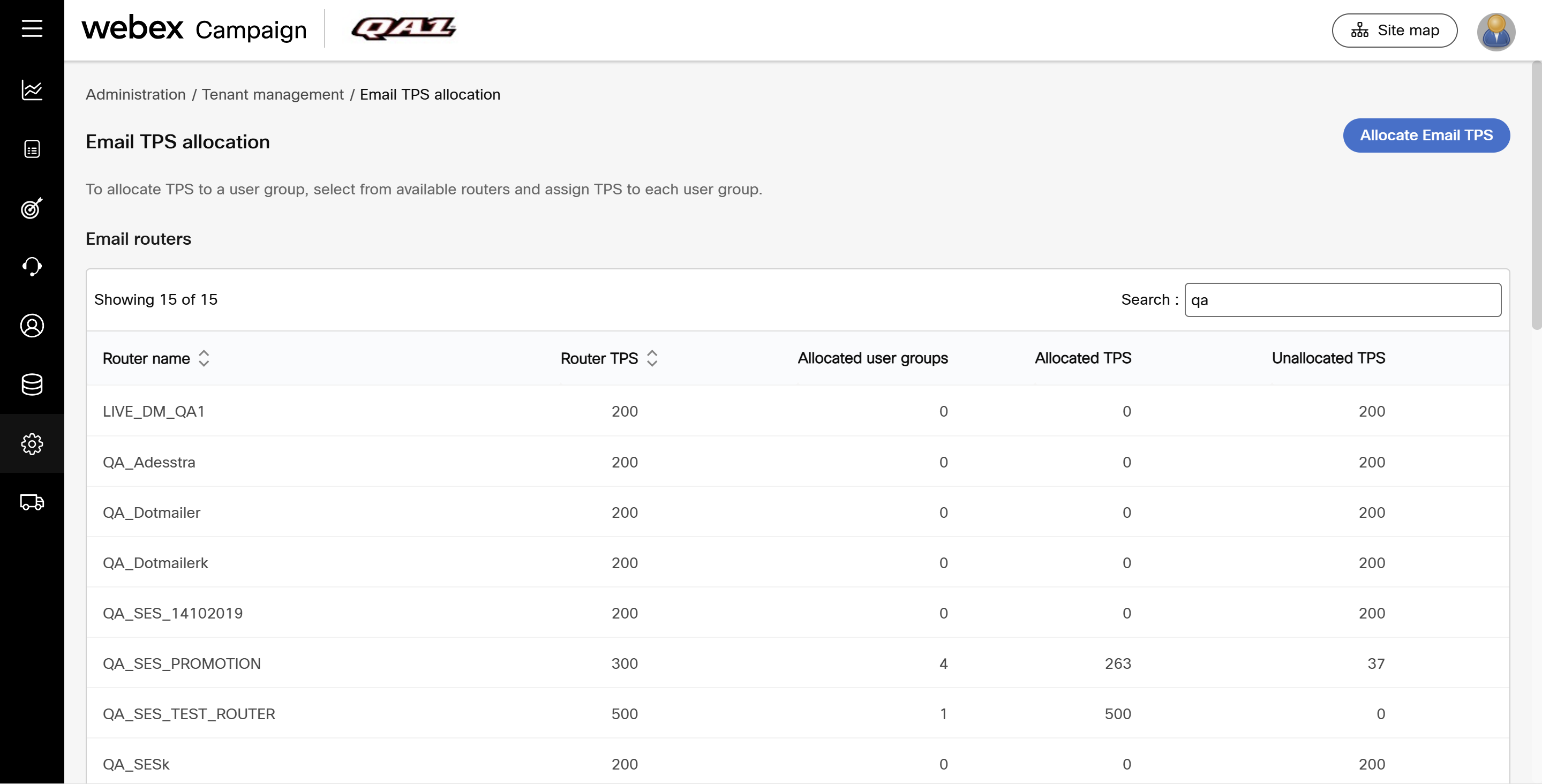
- Configure the following:
- Select router: Select the router from the drop-down. A text is displayed showing the available TPS for the router
- User group: Select the user group to which you want to assign the router.
- TPS: Enter the TPS
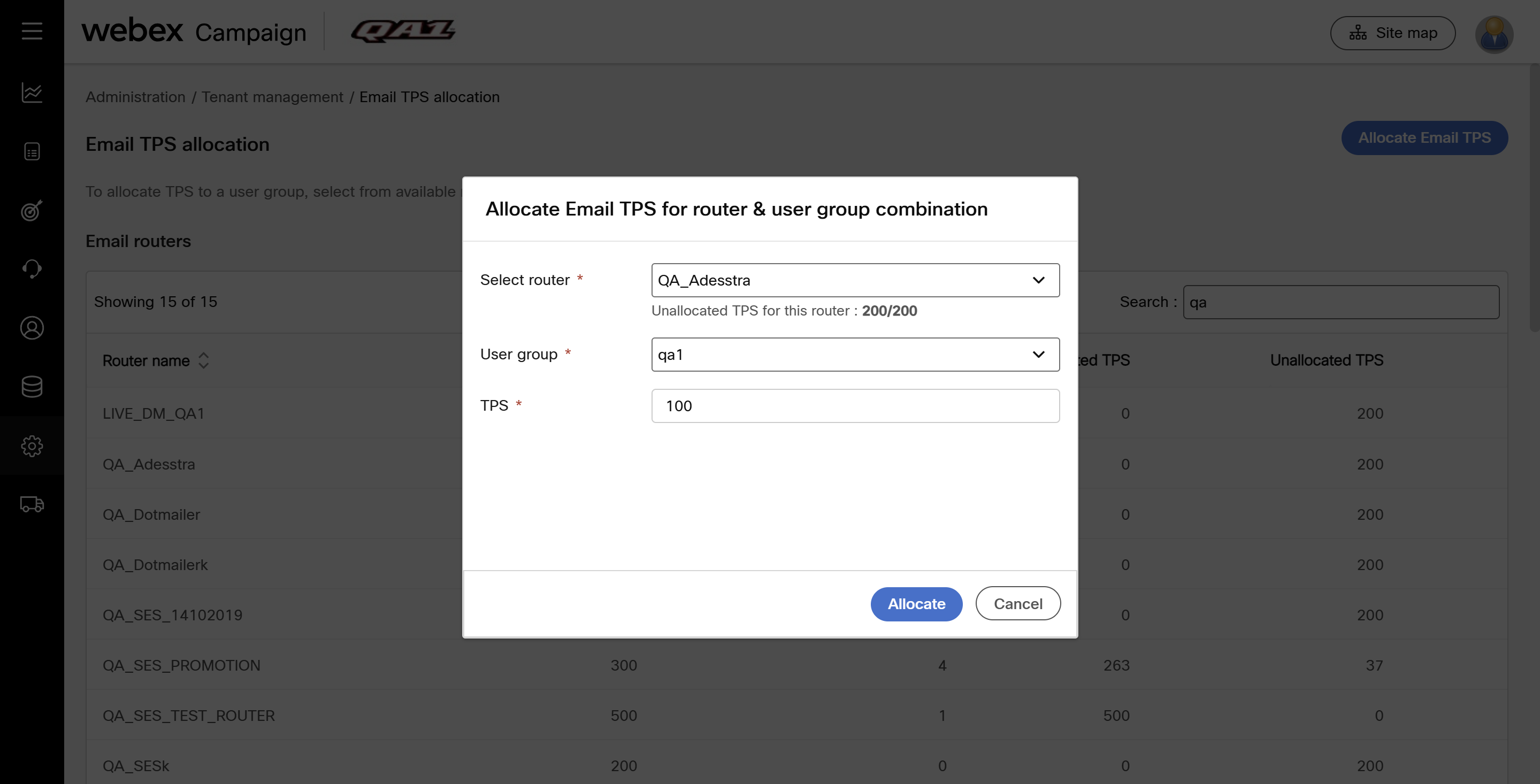
- Click Allocate.
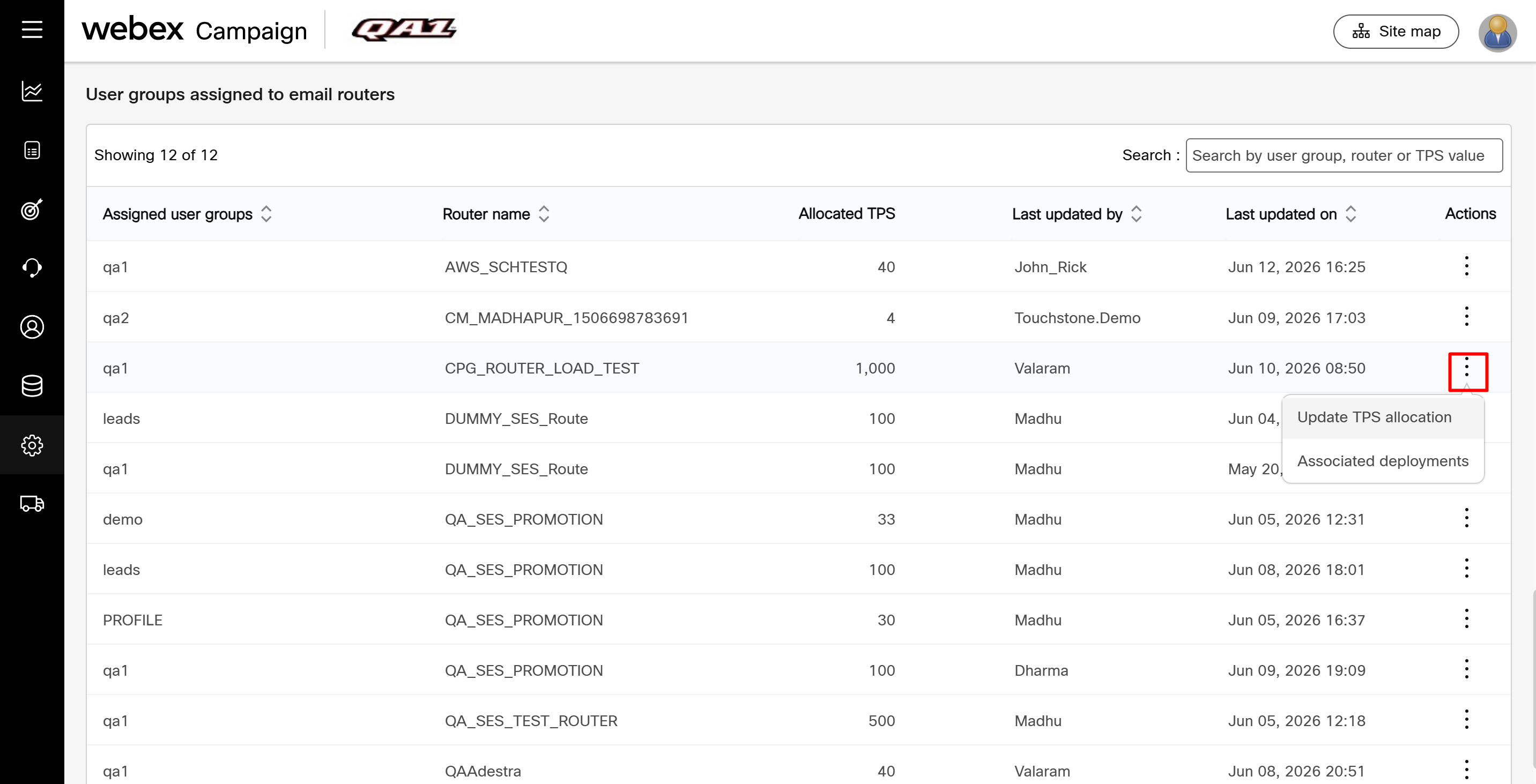
- To edit TPS allocation, scroll-down the page to view all the user groups assigned with different routers and its TPS.
- Search the user group or router using the search box. Click the ellipses icon of the respective and click Update TPS allocation to change the TPS.
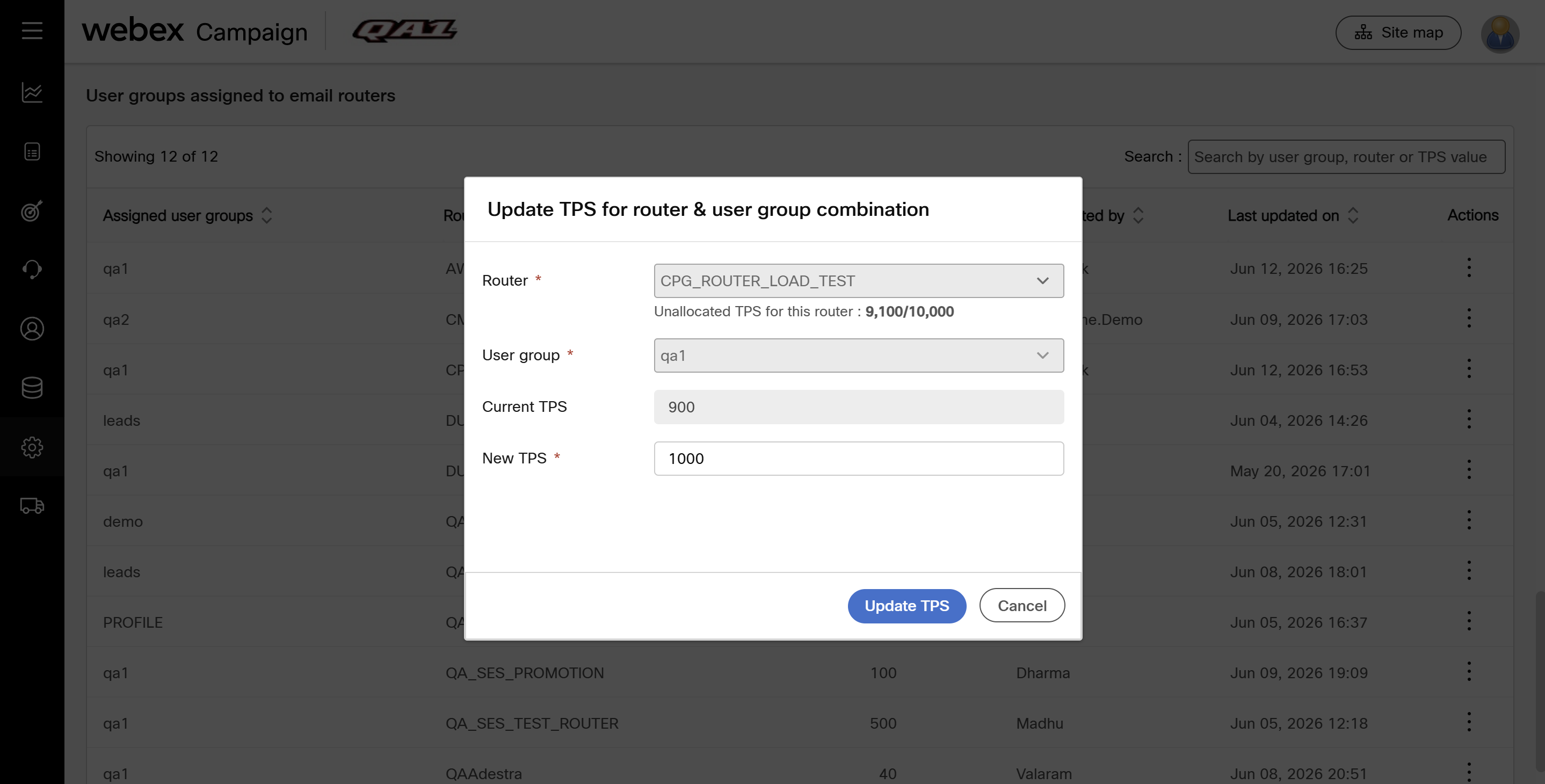
- Enter the new TPS and click Update TPS.
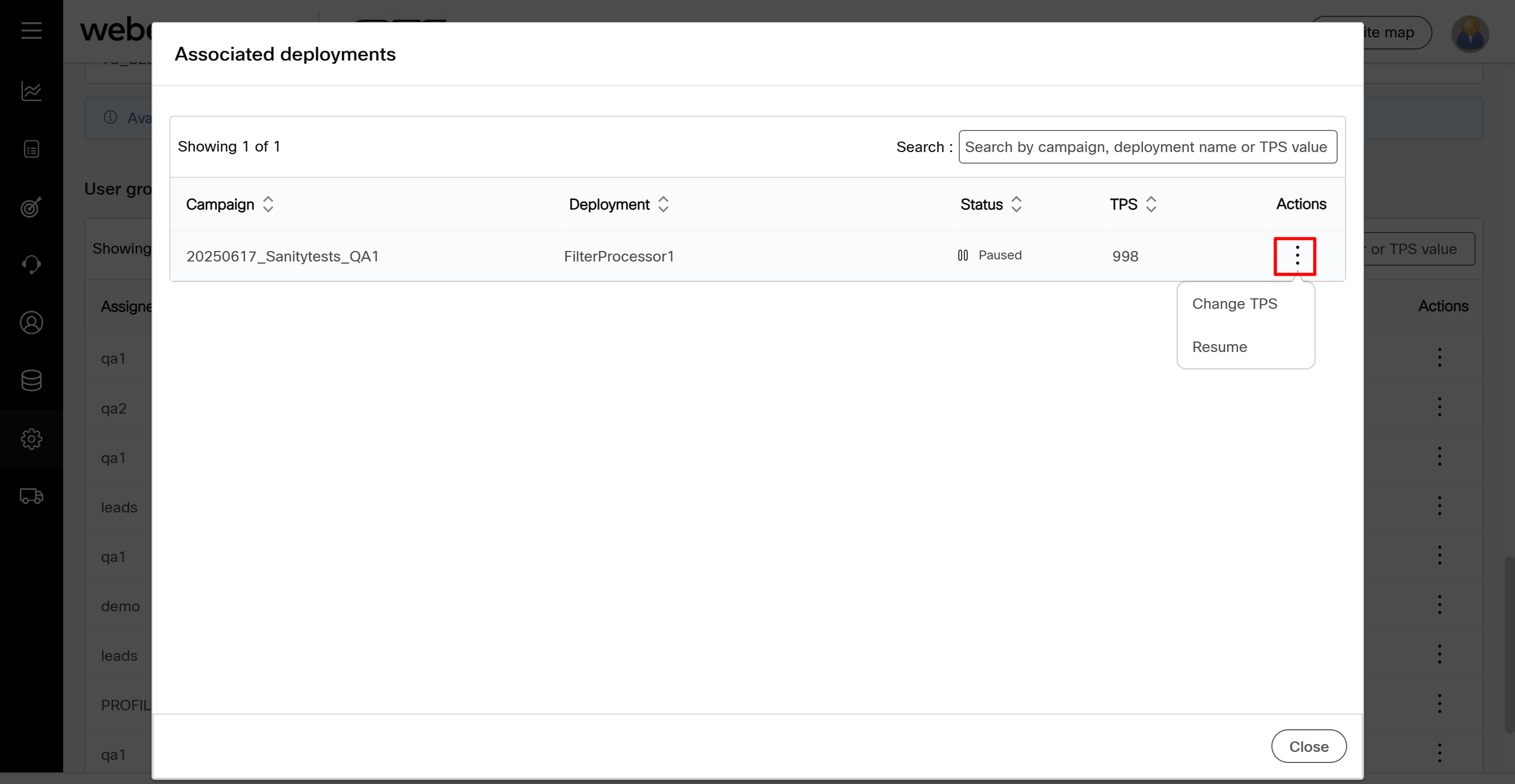
- Click the ellipses icon of the respective user group and router combination and click Associated deployments to view the deployments configured with the user group and router combination.
- Click the ellipses icon of the required deployment and click Change TPS.
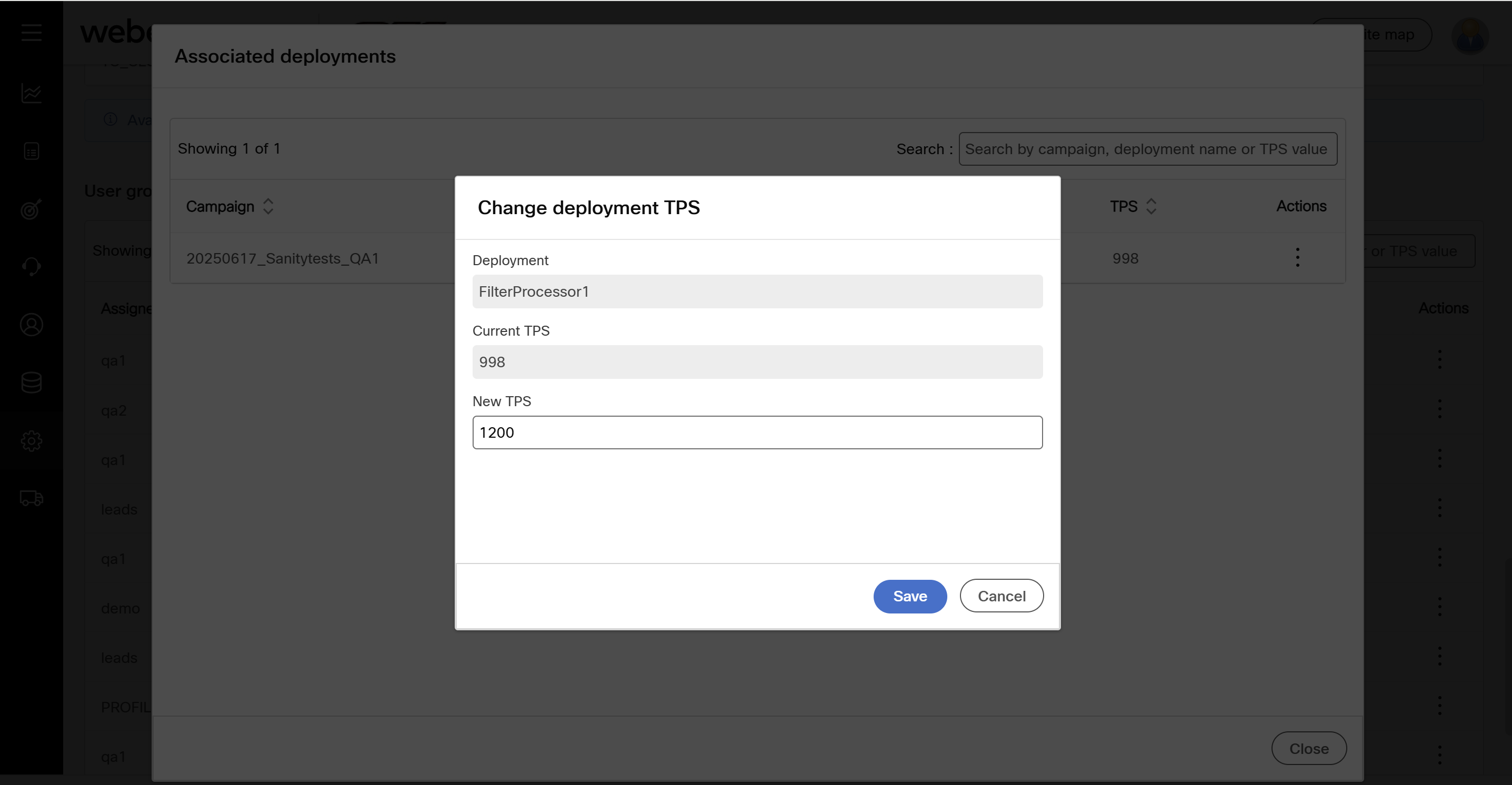
- Enter the new TPS and click Save.
Updated 4 months ago